Capture slow motion videos on your Galaxy phone

Unlock the creative potential of your Galaxy phone with slow-motion video capture! Whether you're recording a sports event, a dance performance, or a fun moment with friends, slow-motion videos add a cinematic flair to your content. This guide will walk you through accessing the Slow Motion Camera mode in the Camera app and using Instant Slow-Motion in the Gallery app, along with tips for sharing your creations seamlessly.
A hand holding a pink Galaxy Z Flip phone recording a dog running on grass with a toy bone.

Capture slow motion videos on your Galaxy phone

Capture Slow-mo videos in the Camera app

Use the Camera app's slow-motion mode to create cinematic footage of sports, dances, or playful interactions. 

  1. Open the Camera app on your phone.
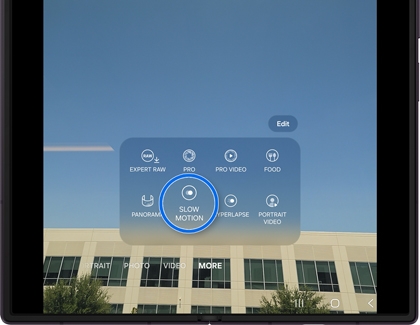
  2. Tap More at the bottom of the screen, and then tap SLOW MOTION.
    A Galaxy phone showing the camera app with the More tab open and the Slow Motion option selected.
  3. Position your phone, and then tap the record button to start capturing slow-motion footage.
Read less

Use instant Slow-motion in the Gallery app

Note
  • Instant Slow-mo works on videos up to 4K resolution and 60fps.
  • Instant Slow-mo with Galaxy AI is available on select phones and tablets running Android 14 with One UI 6.1 or higher. If the feature is not available on your device, it may not be compatible. Ensure your device is updated.

A hand touching and holding the screen of a Galaxy S24 Ultra to activate Instant Slow-mo while playing a video

Have you ever wanted to slow down a video in order to catch a precise detail or funny moment? You can do just that with Instant Slow-mo! This Galaxy AI feature lets you slow down a video by touching and holding your device's screen.

  1. Navigate to and open the Gallery app.
  2. Select a video you'd like to watch.
  3. Once the video is playing, touch and hold the screen to use Instant Slow-mo; the video will play slowly as you continue to hold the screen as if it were recorded using Slow-mo.
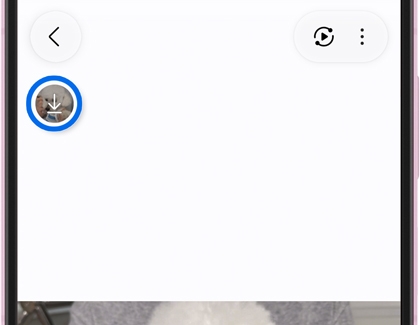
  4. To save Slow-mo clips, tap Save slow-mo clip (the down arrow) in the top left corner after touching and holding the screen to use Instant Slow-mo.
    A Galaxy phone screen showing a save icon circled in blue on the top left.
Read less

Share a slow motion video

Videos are automatically saved in the Gallery app. Just open your Gallery to share your slow-mo videos with friends.

  1. From the Gallery app, find and select your desired Slow motion video.
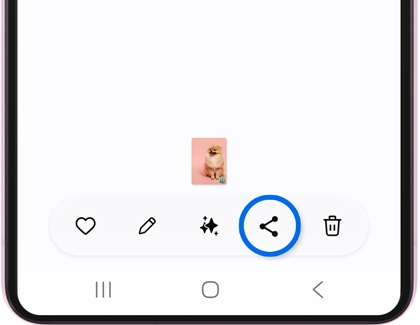
  2. Tap the Share icon at the bottom of the screen, and then select a sharing method. For instance, you can send the video via Quick Share, Google Drive, Gmail, or Bluetooth.
    A Galaxy phone screen showing a small dog image in the gallery, with the share icon highlighted.
Read less

Slow motion tips

Check out the following tips to get the best results with slow motion videos:

  • Make sure there are no moving objects in the on-screen square other than the object you're trying to record.
  • Avoid recording in flickering or fluorescent light to avoid streaks or flashing lines appearing in the video playback.
  • Record in an area with sufficient light. We recommend recording under LED lighting or sunlight. Recording in a dark setting will cause noise.
Read less
Was this content helpful?
Table of contents
We're here for you

Contact Samsung Support

Contact us online through chat and get support from an expert on your computer, mobile device, or tablet. Support is also available on your mobile device through the Samsung Members App.

