Quickly Share your Hotspot with a QR Code
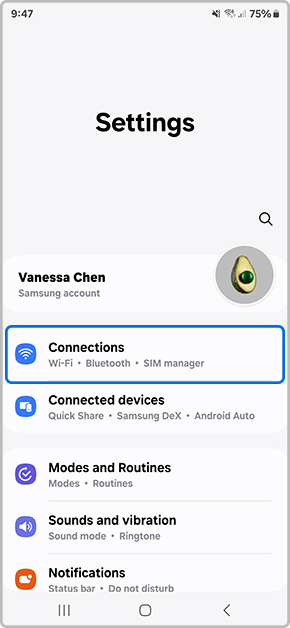
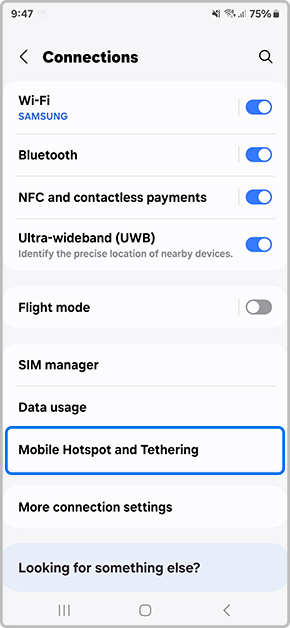
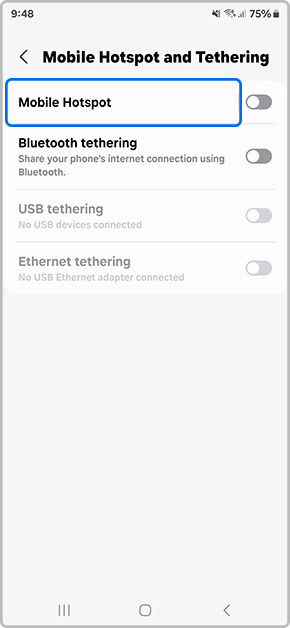
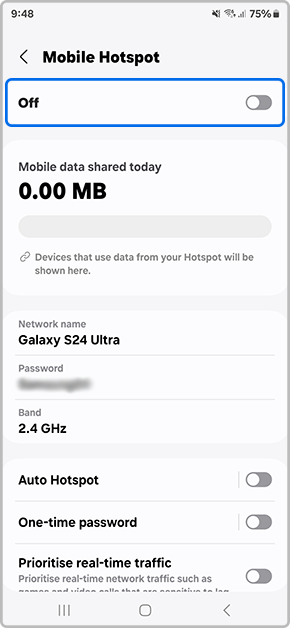
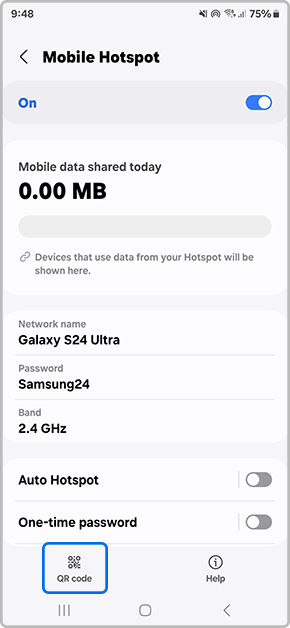
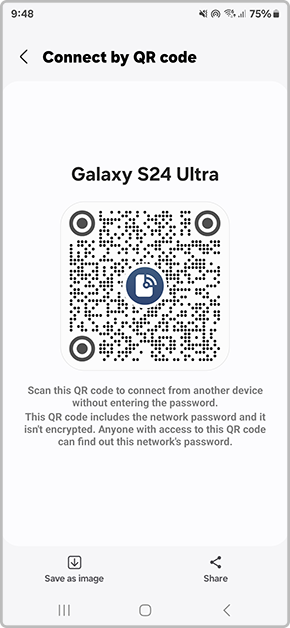
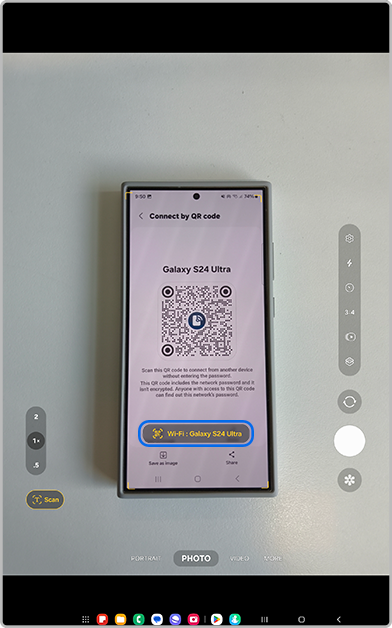
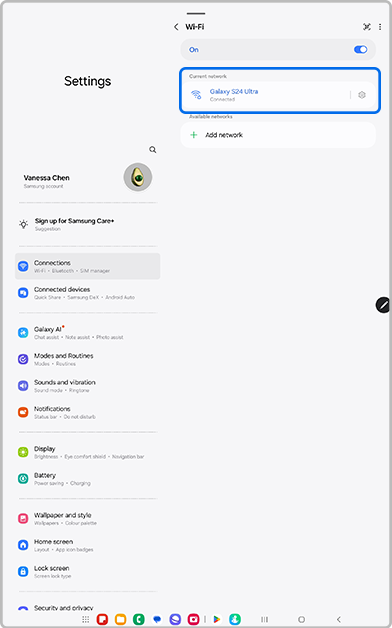
Want to quickly share and connect to a Mobile Hotspot connection without having to manually enter in the passcode? Use the unique QR Code within your Mobile Hotspot settings to easily share amongst your friends, family and other Galaxy devices. Follow the below guide for step by step instructions.
Please Note: This guide is designed for Australian variant Galaxy devices, if you have an international device and require further support click here to get in touch with your Samsung subsidiary.

Hotspot won't turn on?
1. Turn off Data Saver: Go to Settings > Connections > Data Usage > Data Saver > Toggle Off.
Data Saver prevent hotspot sharing when active.
2. Check Wi-Fi Sharing: Go to Settings > Connections > Mobile Hotspot and Tethering > Mobile Hotspot and turn on Wi-Fi sharing.
Alternatively, disconnect from Wi-Fi before turning on the hotspot.


The Connecting device can't scan the QR Code
1. Turn on Wi-Fi: Ensure Wi-Fi is toggled ON on the joining device, even if it is not connected to a network.
2. Adjust brightness: Increase the brightness on the host phone generating the QR Code.


Connected to Hotspot, but no internet access?
1. Check Host Signal:Ensure the host phone has an active mobile data connection (5G/4G) and isn't in Flight Mode.
2. Check Data Allowance: Verify with your network provider that your plan includes mobile hotspot or tethering data allowances.
3. Reconnect Device: On the joining device, turn Wi-Fi off and back on, then scan QR Code again.


*Samsung uses AI generated images across its website and there may be some minor differences in product depictions.

Thank you for your feedback!
Please answer all questions.
Contact Info
Contact us
WhatsApp
![]()
![]()

