Edit portrait photos with Portrait Studio on your Galaxy phone

Portrait Studio on select Galaxy phones allows you to transform your portraits and pet photos using AI generated styles. For instance, you can apply cartoon or comic styles to your selfies to create a completely new image!
A Galaxy S25 Ultra generating stylized portrait images using Portrait Studio, displaying different artistic renderings of a woman's photo

Edit portrait photos with Portrait Studio on your Galaxy phone

Note
  • Galaxy AI basic features provided by Samsung are free. Any Samsung enhanced AI features and all third party AI features are subject to different terms and may be subject to fees. (Galaxy AI basic features are listed under "Advanced intelligence" in Samsung Services Terms and Conditions.)
  • Portrait Studio is available on devices running Android 14 and One UI 6.1.1 or higher. If the feature is not available on your device, it may not be compatible. Ensure your device is updated.
  • Available features, settings, and menu options may vary by device and software version.

Use Portrait Studio

If you’d like to change up your portraits using unique styles, just follow the steps below.

  1. Navigate to open the Gallery app, and then select a portrait photo or a pet photo you’d like to edit.
  2. Tap the Photo assist icon (the stars).
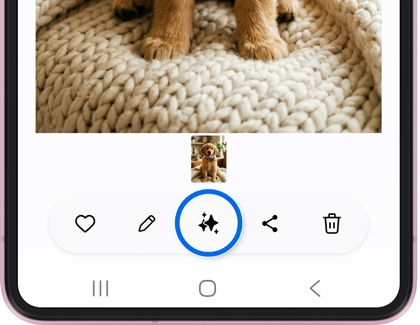
    A photo gallery screen with editing and sharing toolbar icons displayed at the bottom with the three star Photo Assist icon highlighted.
  3. Tap Style, and then tap Portrait to switch to the Portrait studio.
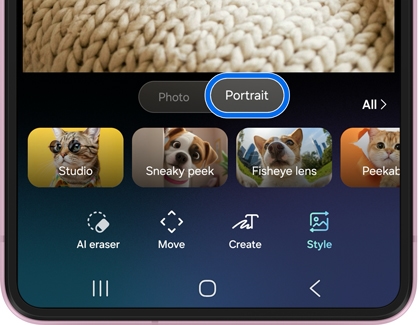
    A carousel of AI photo editing styles under an image, a Portrait tab, and a selection of tools with Style highlighted.
  4. Select a portrait style, such as 3D cartoon, Storybook, or Oil painting, and then Tap Generate.
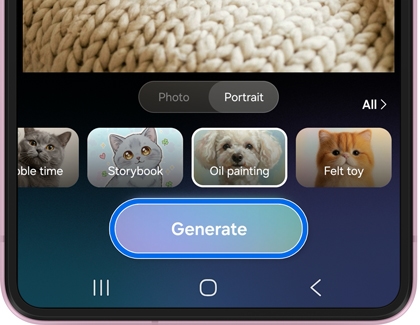
    A carousel of AI photo editing styles with the Oil painting thumbnail selected from a row of options and a Generate button highlighted at the bottom.

    Note
    : The results will differ depending on the portrait style that has been selected.
  5. Once your portrait has been generated, you can tap the Download icon on the portrait to save it to the Gallery, or tap Save copy to save a copy of your portrait.
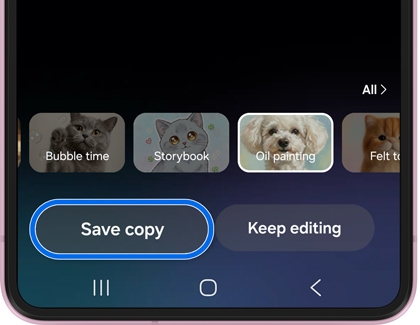
    A generated oil painting of a dog with a white border and two large gray buttons labeled Save copy and Keep editing at the bottom
  6. Swipe left on the generated portrait and tap Generate one more to generate another portrait using the same style.
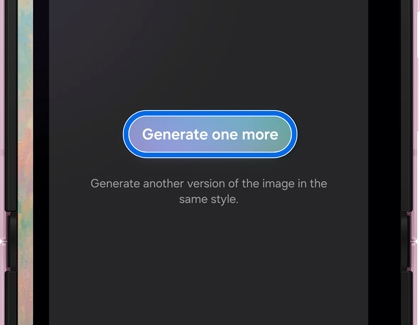
    A dark screen showing a Generate one more button highlighted.

    Note: You can continue generating additional portraits if desired.
  7. You can select a different style as well. Swipe through the style options at the bottom of the screen, select a style, and then tap Generate.
  8. When you're finished, tap Back, and then tap Leave if prompted.

Was this content helpful?
Table of contents
We're here for you

Contact Samsung Support

Contact us online through chat and get support from an expert on your computer, mobile device, or tablet. Support is also available on your mobile device through the Samsung Members App.

